An AI PDF reader that stays on the page
Most “chat with PDF” tools take you away from the document. PDF Lens is an AI PDF reader: you highlight the sentence you do not understand, and the explanation opens beside that page.
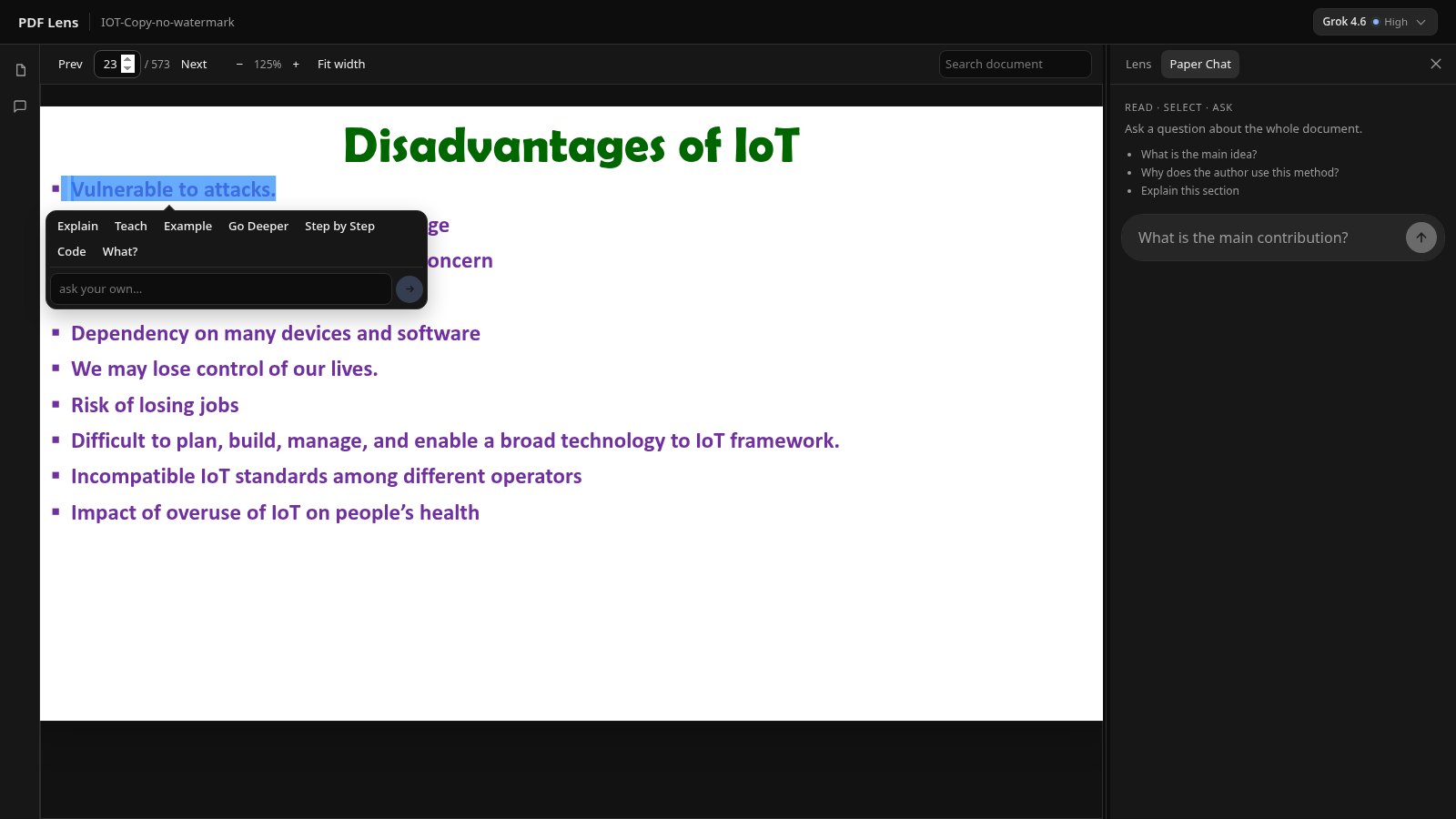
What an AI PDF reader should do
If you are searching for an AI PDF reader, you probably already have a file open — a paper, a chapter, a report — and a sentence that will not yield. The job is not to produce a detached essay about the file. The job is to let you keep reading.
A useful reader therefore needs three things: the page itself, a way to point at a passage, and an answer that you can check against that passage. PDF Lens is built around that loop.
How PDF Lens reads a PDF
- Open a digital PDF (text you can select, up to 50 MB).
- Read as you would in any viewer: pan, zoom, search.
- Highlight a sentence or paragraph.
- Choose a Lens action — Explain, Teach, Step by Step, and the rest — or type your own instruction.
- Read the answer in the panel beside the page. Highlight inside that answer if you need to go deeper.
Opening, reading, searching, and zooming do not use the AI meter. You pay only for Lens actions and Paper Chat.
Search, then ask
Before you ask the model anything, search the PDF for the term you actually need. Jump to the hit, read the local paragraph, then select it. That is slower than “summarize this file,” and it is how you avoid answers that sound right and cite the wrong section.
When you do ask across the document — Paper Chat — answers are grounded in retrieved passages, not a silent dump of the whole file. Citations look like [p. 12] so you can jump back.
What this is not
- Not OCR. Image-only scans cannot be selected or searched. PDF Lens needs a text layer. Scanned pages show a warning; they are not recovered.
- Not a multi-document compare. You can keep a library of PDFs and open one at a time. There is no “diff these two papers” action.
- Not unlimited AI. Free is 10 actions per day. Pro is a monthly allowance with a daily cap. Hosted answers use an economical model, not a frontier lab model.
Who it is for
Students and researchers reading papers. Professionals stuck on a dense PDF. Anyone who wants the explanation next to the sentence, not in a separate chatbot that has forgotten the layout of the page.
If you came here from a ChatPDF, Humata, NotebookLM, or Acrobat AI search, the honest difference is the workflow: selection first, page still visible.
Chat with a PDF · Summarize a PDF · AI for research papers · How to read papers · Pricing