Chat with a PDF — without losing the page
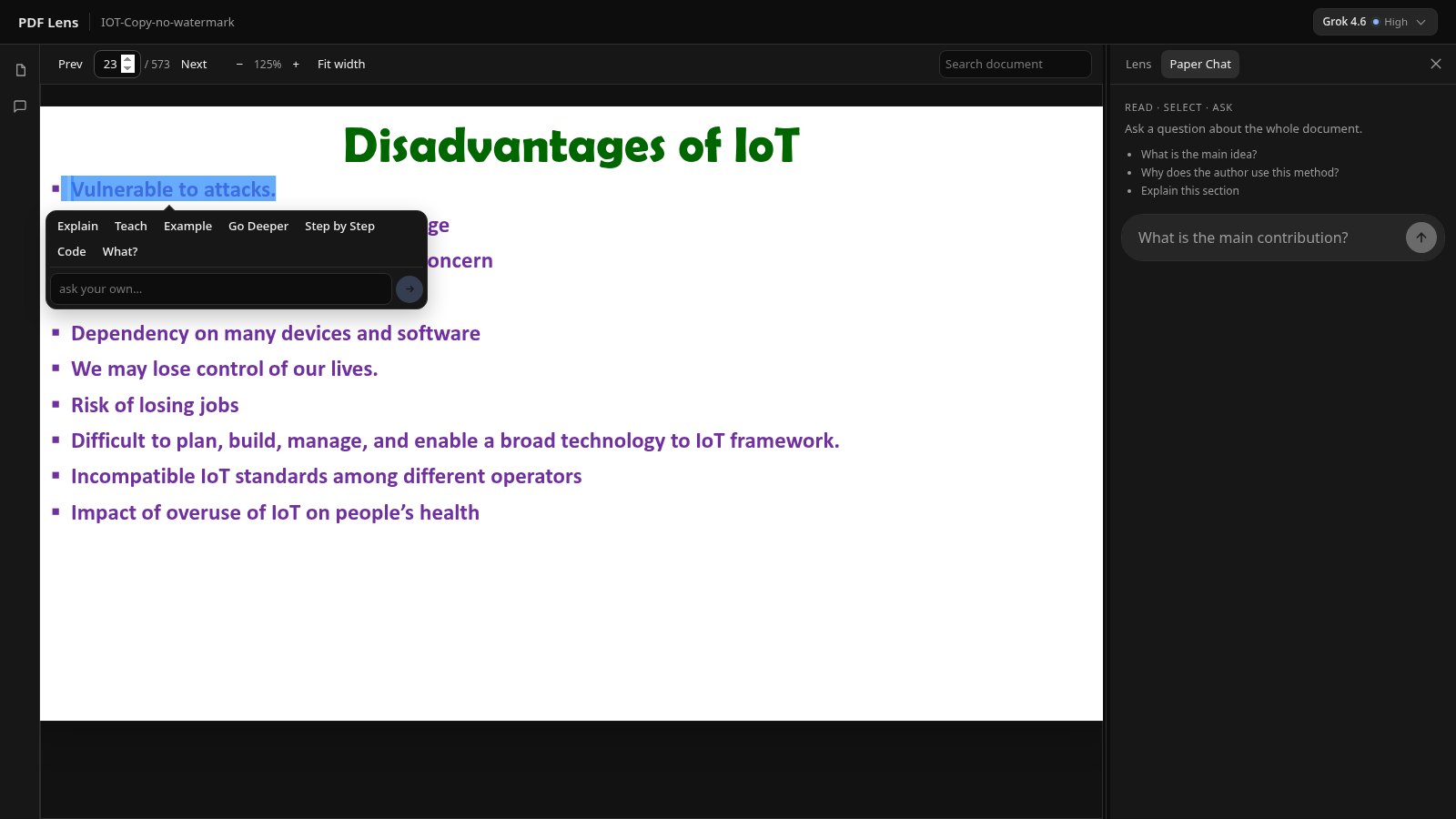
“Chat with PDF” usually means: upload a file, type into a blank box, hope the answer is about the right paragraph. Paper Chat in PDF Lens still answers questions. It does it beside the document, from retrieved passages, with page citations.
When chatting is the right move
Use a question when you do not yet know which sentence to highlight. “What do the authors claim about afterload?” is a search-and-ask problem. “What does this sentence mean?” is a selection problem. PDF Lens has both: in-document search and Paper Chat for the first, Lens for the second.
How Paper Chat answers
Paper Chat does not paste the entire PDF into the model. It retrieves a small pack of passages related to your question, then asks the model to answer from those passages. The reply may include clickable [p. N] citations. If a citation is not from a retrieved page, it is not treated as a link.
That design has a cost: a question that needs a figure the extractor never saw, or a table that came through as a jumble, will get a weaker answer. It also has a benefit: you are not pretending the model “has” a 200-page file in working memory.
A better question is usually smaller
- Worse: “Summarize this paper.” Better: “What is the main claim in the abstract, in one sentence?”
- Worse: “Is this correct?” Better: “What result in the paper is offered as evidence for claim X?”
- Worse: “Explain everything about methods.” Better: “How were participants assigned, and what was measured?”
Once the answer points at a page, open that page, select the sentence, and use Lens. Chat finds the neighborhood. Selection does the close reading. See how to extract evidence if you are collecting claims for notes.
Limits worth knowing
- Needs selectable text. There is no OCR of scanned pages.
- One PDF at a time. You cannot ask one question across your whole library.
- Hosted answers use an economical model. They can be wrong. Check the page.
- Paper Chat uses the AI meter (Free 10/day; Pro is a monthly allowance with a daily cap).
AI PDF reader · Summarizing PDFs · Research papers · Compared with ChatPDF